
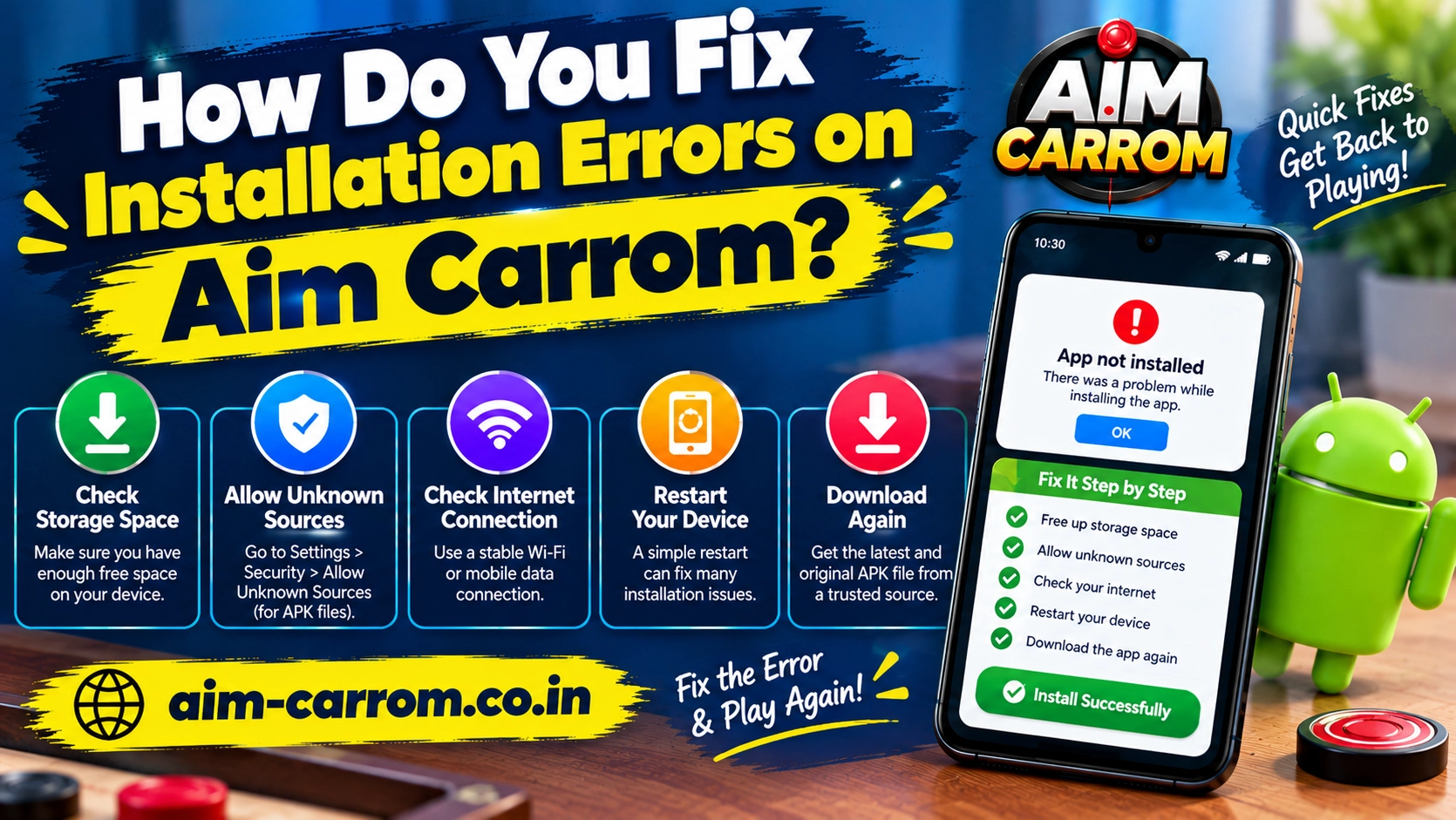
How to Fix Installation Errors on Aim Carrom: Complete Troubleshooting Guide
Aim Carrom installation errors occur due to insufficient storage space, restricted app permissions, or corrupted file downloads. Because Aim Carrom is a third-party overlay utility often downloaded as an APK package, standard Android security protocols can block the installation process.
Resolving these installation issues requires simple configuration adjustments on your Android phone.
Common Installation Errors and Solutions
The table below outlines common error messages, their root causes, and quick solutions to fix them.
| Error Message | Primary Cause | Recommended Fix |
| App Not Installed | Conflicting older app files or low storage space | Uninstall previous versions and clear at least 100 MB of internal storage |
| Parse Error | Corrupted download or unsupported Android version | Re-download a fresh installer package and verify Android 5.0+ compatibility |
| Blocked by Play Protect | Google Play Protect flagging unverified third-party software | Temporarily pause app scanning inside Google Play Store settings |
| Blocked from Unknown Sources | Installation rights disabled for your browser or file manager | Enable “Install Unknown Apps” permission in system settings |
Step-by-Step Fixes for Installation Errors
Applying these targeted troubleshooting steps ensures a smooth installation process on your mobile device.
- Enable Install from Unknown Sources: Navigate to your device settings, open apps, select special app access, and tap install unknown apps. Select your browser or file manager and toggle on allow from this source to grant installation rights.
- Clear Storage and Remove Older App Versions: Uninstall any existing version of Aim Carrom or conflicting aim-assist tools from your device. Ensure your phone has sufficient free internal storage space to complete the package extraction.
- Bypass Google Play Protect Blocks: Open the Google Play Store, tap your profile icon, select Play Protect, open settings, and temporarily disable scan apps with Play Protect. Retry installing the file once scanning is paused.
- Re-download a Fresh Installation File: Delete the previous installation file from your downloads folder. Download a fresh file using a stable internet connection to prevent incomplete downloads that trigger package parsing errors.
Verification and Post-Installation Setup
Once the installation completes, verify successful setup by launching the app and confirming that the home interface opens without crashing. Next, navigate to your device settings, open apps, select Aim Carrom, and verify that display over other apps permission is active so targeting lines render properly over game screens.
Conclusion
Most Aim Carrom installation errors stem from restricted Android permissions, Play Protect blocks, or corrupted file downloads. Enabling unknown source installations, clearing device storage, and downloading a clean installation file resolves package parsing issues and ensures smooth setup on supported Android hardware.