
What Permissions Does the Aim Carrom App Require? Complete Permissions Guide
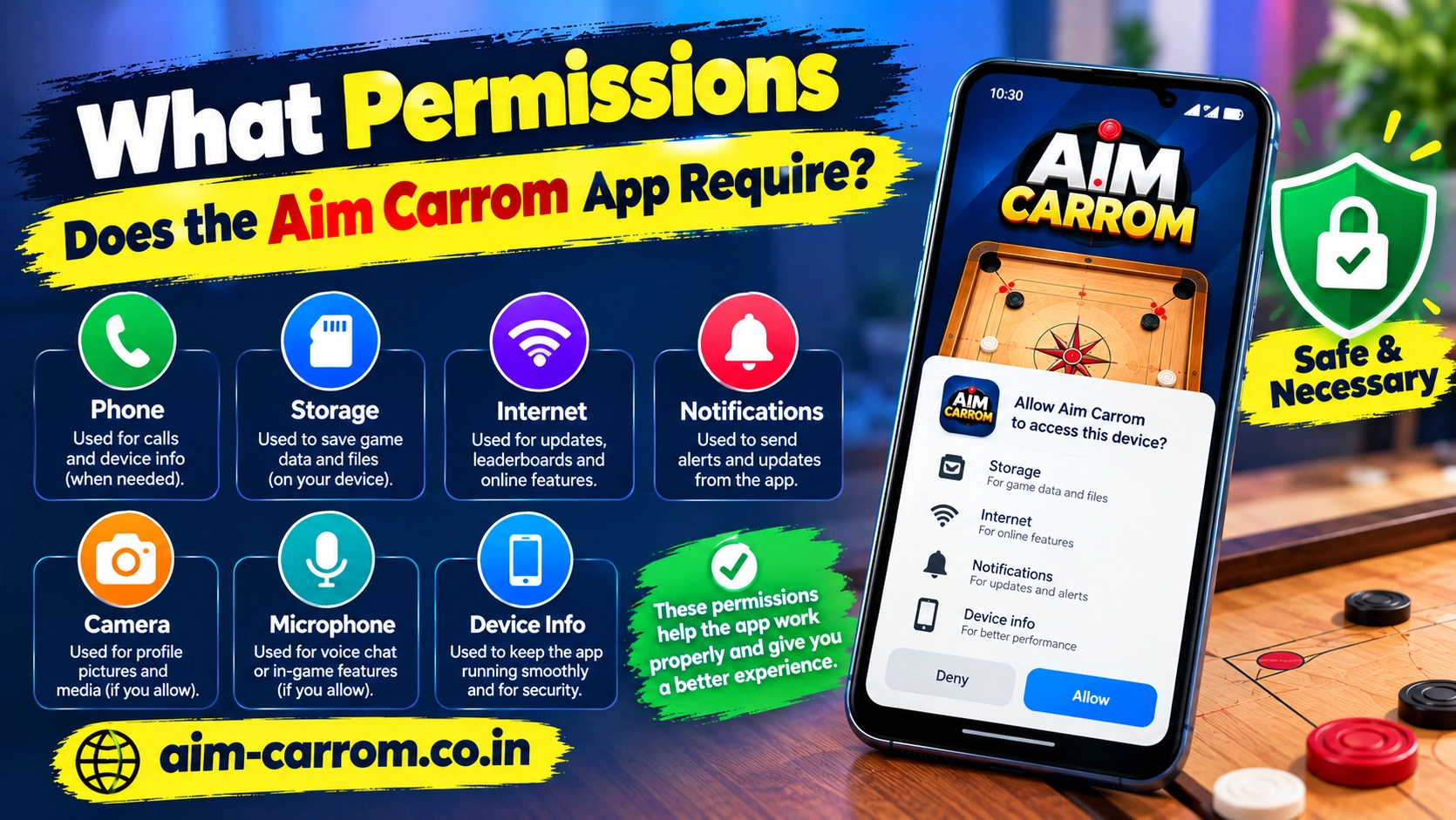
Aim Carrom requires specific system permissions to project targeting lines over the Carrom Pool game board. Because the application functions as a live companion layer, Android enforces precise permissions to allow real-time screen tracking and overlay drawing.
Understanding these permissions helps users evaluate privacy security and ensure smooth application performance.
Core System Permissions Demanded by Aim Carrom
To deliver real-time aiming calculations, the app requests several crucial Android system access rights upon launch.
- Display Over Other Apps: Allows the Aim Carrom application to draw virtual targeting lines directly on top of the Carrom Pool game interface.
- Screen Capture or Media Projection Permission: Grants permission to read screen frames in real time so the underlying image recognition system can calculate bounce trajectories.
- Network and Internet Access:Enables the app to load online configurations, display advertisements, and check for server updates.
- Foreground Service Permission: Prevents Android system memory managers from forcefully closing the aiming overlay during live gameplay.
- Storage Access: Allows saving application settings, line styling presets, and cached configuration files.
Permissions Impact and Functionality Matrix
Each requested permission serves a direct purpose in rendering aiming assistance during gameplay.
| Permission Name | Operational Purpose | Security Impact |
| Draw Over Other Apps | Displays trajectory lines over active game screens | High impact on visual screen management |
| Screen Recording / Capture | Reads striker position and board layout live | High privacy relevance since active pixels are read |
| Full Internet Access | Fetches ad content and updates app files | Moderate impact on mobile data usage |
| Ignore Battery Optimization | Keeps background line calculations active | Minor impact on device battery consumption |
How to Manage Permissions Safely on Android
Managing permissions manually allows you to maintain control over your device privacy while using utility tools.
First, enable the Display Over Other Apps setting only when you plan to practice Carrom Pool matches. You can toggle this permission off inside your Android system settings whenever you finish playing.
Second, revoke screen capture rights when switching to sensitive personal applications. Disabling active recording permissions stops background tools from reading display pixels while you open banking or messaging apps.
Finally, turn off background data usage for the tool if you prefer using it strictly offline. Restricting background network access prevents unauthorized ad refreshes while keeping basic line calculations functional.
Conclusion
Aim Carrom depends heavily on display overlay and screen capture permissions to draw target paths during gameplay. While these permissions are essential for the tool to function, granting extensive screen access to third-party utility apps carries privacy considerations. Revoking overlay rights after practice sessions ensures your device settings stay completely secure.